Why Your Meta Pixel Is Missing Shopify Purchases (And How to Fix It)
You just checked your Shopify dashboard and saw 47 orders yesterday. Great news. Then you opened Meta Ads Manager and it reported 19 purchases. That gap is not a rounding error — it is a real problem that is costing you money every single day.
If your Meta Pixel is not tracking Shopify purchases correctly, you are not alone. This is the most common issue Shopify merchants running Meta ads face in 2026, and it has gotten dramatically worse over the past few years.
The consequences go beyond inaccurate reports. When Meta’s algorithm cannot see your conversions, it cannot optimise your campaigns properly. Your cost per acquisition climbs, your ROAS drops, and you end up making budget decisions based on incomplete data.
Here are the seven reasons your pixel is missing purchases — and the permanent fix.
TL;DR
Your Meta Pixel is likely missing 30-60% of Shopify purchases due to iOS privacy changes, ad blockers, cookie restrictions, and browser-based tracking limitations. The only permanent fix is server-side tracking (Meta CAPI), which sends conversion data directly from your server to Meta — bypassing every browser-based obstacle.
Reason 1: iOS App Tracking Transparency
This is the single biggest cause of missing conversions. When Apple introduced App Tracking Transparency (ATT) in iOS 14.5, it gave iPhone users a simple prompt: “Allow this app to track your activity across other companies’ apps and websites?”
Roughly 75-85% of users tap “Ask App Not to Track.” When they do, Meta’s pixel loses the ability to track their actions across your Shopify store.
Given that iPhones account for around 50-60% of mobile traffic for most Shopify stores, this means 30-40% of your total visitors are effectively invisible to the Meta Pixel. They can browse your products, add items to their cart, and complete checkout — and Meta will never know it happened.
There is nothing you can do to reverse a user’s ATT choice. This is a permanent shift in how browser-based tracking works on iOS devices.
Reason 2: Ad Blockers
Browser extensions like uBlock Origin, Adblock Plus, and Ghostery do exactly what their names suggest — they block advertising scripts from loading. The Meta Pixel is one of the first scripts they target.
Ad blocker usage has been growing steadily and now affects an estimated 30-40% of desktop traffic. Some demographics skew even higher. If your customers tend to be tech-savvy or younger, the impact on your tracking could be substantial.
When an ad blocker prevents the Meta Pixel from loading, no events fire at all. No PageView, no AddToCart, no Purchase. From Meta’s perspective, that visitor never existed.
Unlike iOS privacy, ad blockers primarily affect desktop users. But combined with ATT on mobile, you are losing tracking coverage on both sides.
Reason 3: Safari Intelligent Tracking Prevention (ITP)
Apple’s Safari browser includes a feature called Intelligent Tracking Prevention that aggressively limits how cookies work. Since Safari is the default browser on every iPhone, iPad, and Mac, this affects a huge portion of your traffic.
ITP restricts first-party cookies set by JavaScript (which includes the Meta Pixel’s _fbp cookie) to a maximum of seven days. In some cases — particularly when a user arrives via a decorated link — that cookie expires in just 24 hours.
What does this mean in practice? If a customer clicks your Meta ad on Monday, browses your store, leaves, and comes back on the following Monday to buy, Safari has already deleted the cookie that links them to the original ad click. Meta cannot attribute that purchase to your campaign.
For stores with longer consideration cycles — anything over a week — this is devastating to your reported ROAS. The conversions are happening. Meta just cannot see them.
Reason 4: Cookie Expiration and Third-Party Cookie Restrictions
The cookie problem extends well beyond Safari. Google Chrome, which still holds roughly 65% of global browser market share, has been progressively restricting third-party cookies and tightening privacy controls.
Third-party cookies — the kind Meta historically relied on for cross-site tracking — are being phased out across all major browsers. Even first-party cookies face growing restrictions through features like bounce tracking mitigations and storage partitioning.
Every browser update introduces new privacy measures. Each one chips away at the Meta Pixel’s ability to track your customers reliably. This is not a temporary trend. It is the direction the entire web is heading.
If you are relying solely on browser-based tracking, you are building on a foundation that is actively crumbling beneath you. For a deeper look at all the tracking challenges facing Shopify merchants, read our complete guide to Shopify conversion tracking.
Tired of debugging your pixel?
ReclaimROAS sends conversion data server-side, bypassing ad blockers, iOS privacy, and cookie issues permanently.
Install ReclaimROAS Free →Reason 5: Pixel Misconfiguration
Not every missing conversion is caused by privacy changes. Sometimes the problem is simpler — your pixel is not set up correctly.
Common misconfiguration issues include:
- Wrong Pixel ID: If the pixel ID in your Shopify settings does not match the pixel in your Meta Ads account, events fire into the void. Double-check the ID in your Shopify admin under Settings > Customer events or your Facebook & Instagram sales channel.
- Data sharing not set to Maximum: Shopify’s Facebook & Instagram sales channel has three data sharing levels — Standard, Enhanced, and Maximum. If you are not on Maximum, you are leaving conversion data on the table. Maximum enables the Conversions API alongside the pixel.
- Duplicate pixels: If you have installed the Meta Pixel via the sales channel and also via a third-party app, you may have two pixels firing simultaneously — or worse, conflicting with each other and causing events to be dropped entirely.
The good news is that these issues are fixable. The bad news is that even a perfectly configured pixel still suffers from all the privacy and browser issues listed above.
Reason 6: Checkout Redirect Issues
Shopify’s checkout architecture can create tracking blind spots. Depending on your Shopify plan, your checkout may live on a different subdomain (checkout.shopify.com) from your main storefront.
When a customer moves from your storefront to the checkout and then to the order confirmation page, the Meta Pixel needs to fire on each step. If the pixel script is not present on the thank-you page — or if a redirect breaks the cookie chain — the Purchase event never fires.
This is particularly common when merchants use custom checkout flows, post-purchase upsell apps, or redirect customers to a custom thank-you page. Any interruption in the expected page flow can cause the pixel to lose track of the session.
Shopify has improved checkout extensibility, but the fundamental challenge remains: browser-based tracking is fragile across page transitions, especially when subdomains or redirects are involved.
Reason 7: Multiple Conflicting Tracking Apps
This is more common than you might think. Many merchants install multiple tracking or analytics apps, each of which may inject its own version of the Meta Pixel or modify how events fire.
When two apps both install the Meta Pixel, you can end up with duplicate Purchase events (making your numbers look inflated) or, paradoxically, missing events when one app’s script conflicts with another’s.
Signs of conflicting tracking apps include:
- Purchase counts in Meta that are significantly higher than your Shopify orders (duplicates)
- Intermittent tracking — some purchases appear, others do not
- The Meta Pixel Helper extension showing multiple pixel IDs firing on the same page
The fix is straightforward: audit your installed apps and make sure only one app or method is responsible for firing Meta Pixel events. Remove duplicates and test thoroughly afterward.
How to Diagnose Your Specific Issue
Before jumping to solutions, it helps to identify which of the seven issues is affecting your store the most. Here is a quick diagnostic process.
Step 1: Install the Meta Pixel Helper. This free Chrome extension shows you which pixel events are firing on each page of your store. Visit your storefront, add a product to cart, and (if possible) complete a test purchase. Check that PageView, AddToCart, and Purchase events all fire with the correct pixel ID.
Step 2: Check Meta Events Manager. Go to Events Manager in your Meta Business Suite and select your pixel. Look at the Overview tab. Compare the number of Purchase events to your Shopify orders over the same period. If there is a gap, you have confirmed the problem.
Step 3: Use the Test Events tool. In Events Manager, navigate to the Test Events tab. Open your store in a new browser tab and complete a test purchase. You should see events appear in real time. If the Purchase event does not show up, you likely have a configuration or checkout issue.
Step 4: Check your Event Match Quality score. In Events Manager, look at the Event Match Quality (EMQ) score for your Purchase event. A score below 6.0 means Meta is struggling to match your conversion data back to specific users. The higher this score, the better Meta can optimise your campaigns.
If your pixel is firing correctly in the test but your numbers still do not match Shopify, the gap is almost certainly caused by privacy and browser issues (Reasons 1-4). And those are not fixable with pixel configuration changes alone.
The Permanent Fix: Server-Side Tracking
Every one of the first four reasons — iOS privacy, ad blockers, Safari ITP, and cookie restrictions — shares the same root cause: they are all browser-based problems. They exist because the Meta Pixel runs in your customer’s browser, and browsers are increasingly blocking tracking scripts.
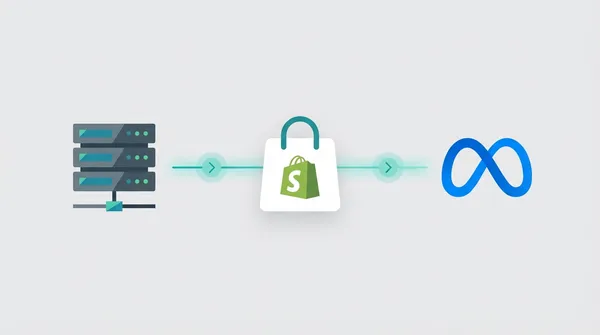
Server-side tracking sidesteps this entirely. Instead of relying on a JavaScript snippet in the browser, your server communicates directly with Meta’s servers through the Conversions API (CAPI). No browser involved. No scripts to block. No cookies to expire.
When a customer completes a purchase on your Shopify store, the order data is sent from your server to Meta’s servers in real time. This happens regardless of whether the customer is using an iPhone, has an ad blocker installed, or is browsing in Safari.
The result is dramatically better conversion data. Merchants who implement server-side tracking typically recover 30-60% more conversions than those relying on the pixel alone.
Meta themselves recommend running both the pixel and CAPI together for the best results. The pixel captures what it can, CAPI fills in the gaps, and event deduplication ensures nothing gets counted twice.
You can set up CAPI manually, through Google Tag Manager’s server-side container, or through a Shopify app. If you want the full technical breakdown, our guide on setting up Meta CAPI for Shopify walks through every method.
For most merchants, an app is the simplest path. You skip the technical setup, avoid ongoing maintenance, and can verify that everything is working through a visual dashboard. You can see exactly how server-side tracking works and why it recovers conversions the pixel misses.
Stop Losing Conversions
Your Meta Pixel is not broken — it is doing the best it can in an environment that is actively working against it. iOS privacy, ad blockers, cookie restrictions, and Safari ITP have fundamentally changed what browser-based tracking can achieve.
The merchants who are thriving with Meta ads in 2026 are not the ones with the most perfectly configured pixel. They are the ones who have added server-side tracking to fill the gaps.
Better conversion data means Meta’s algorithm can find more customers like your best buyers. It means your reported ROAS reflects reality. And it means you can make confident budget decisions instead of guessing.
Stop chasing pixel problems.
ReclaimROAS recovers the conversions your Meta Pixel is missing — automatically, server-side, in under 5 minutes. No code changes needed.
Install ReclaimROAS Free →